


Photos and Video
Light, tight and bright. Six habits for better phone photos, and what makes a photo tell the story.
Photos
Show Rotary, don't sell Rotary.
A good photo does more work than anything you write. Most people decide whether to stop on a post in the half-second they spend looking at the picture.
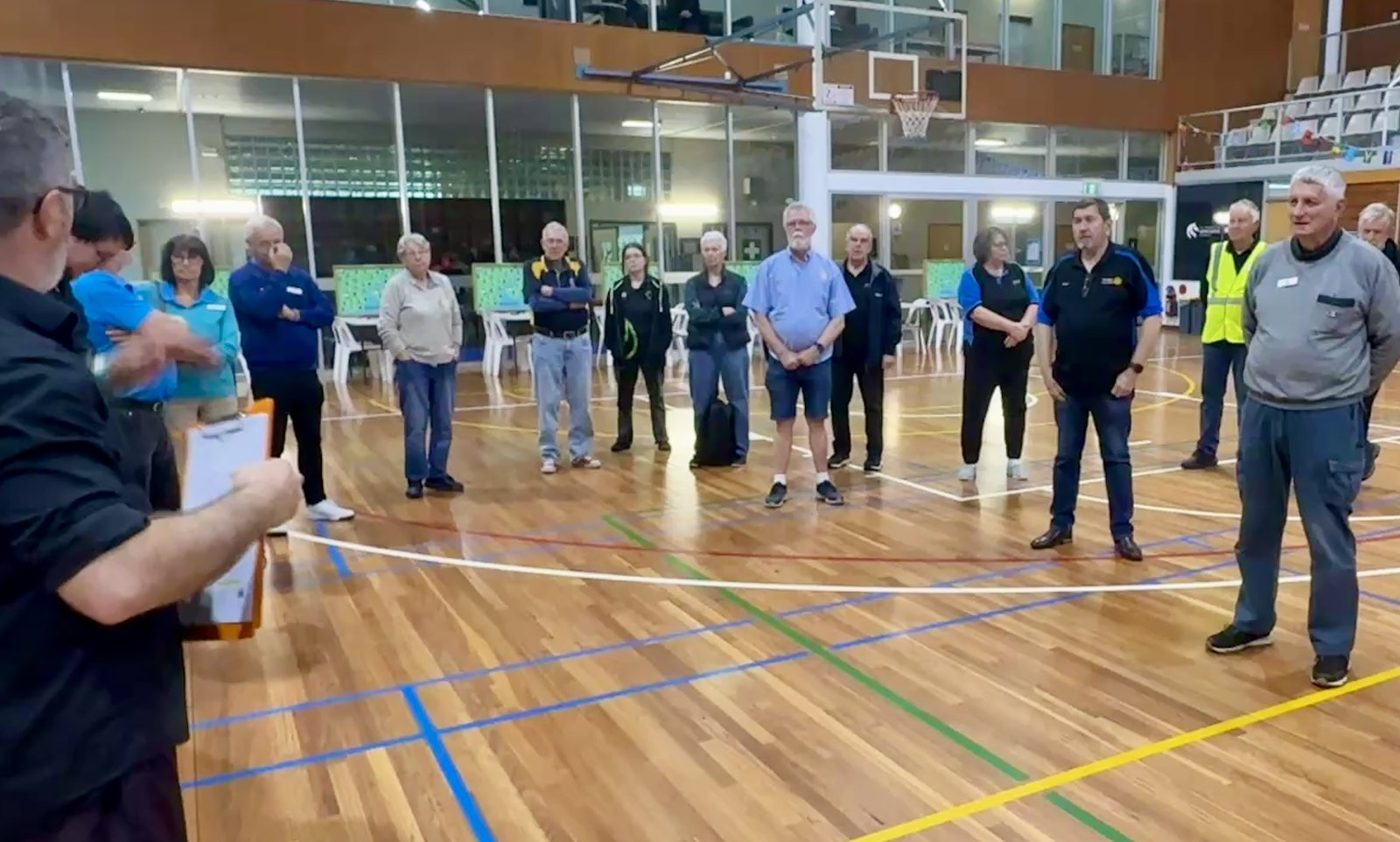
Tells the story. Light, tight and bright: members in action.
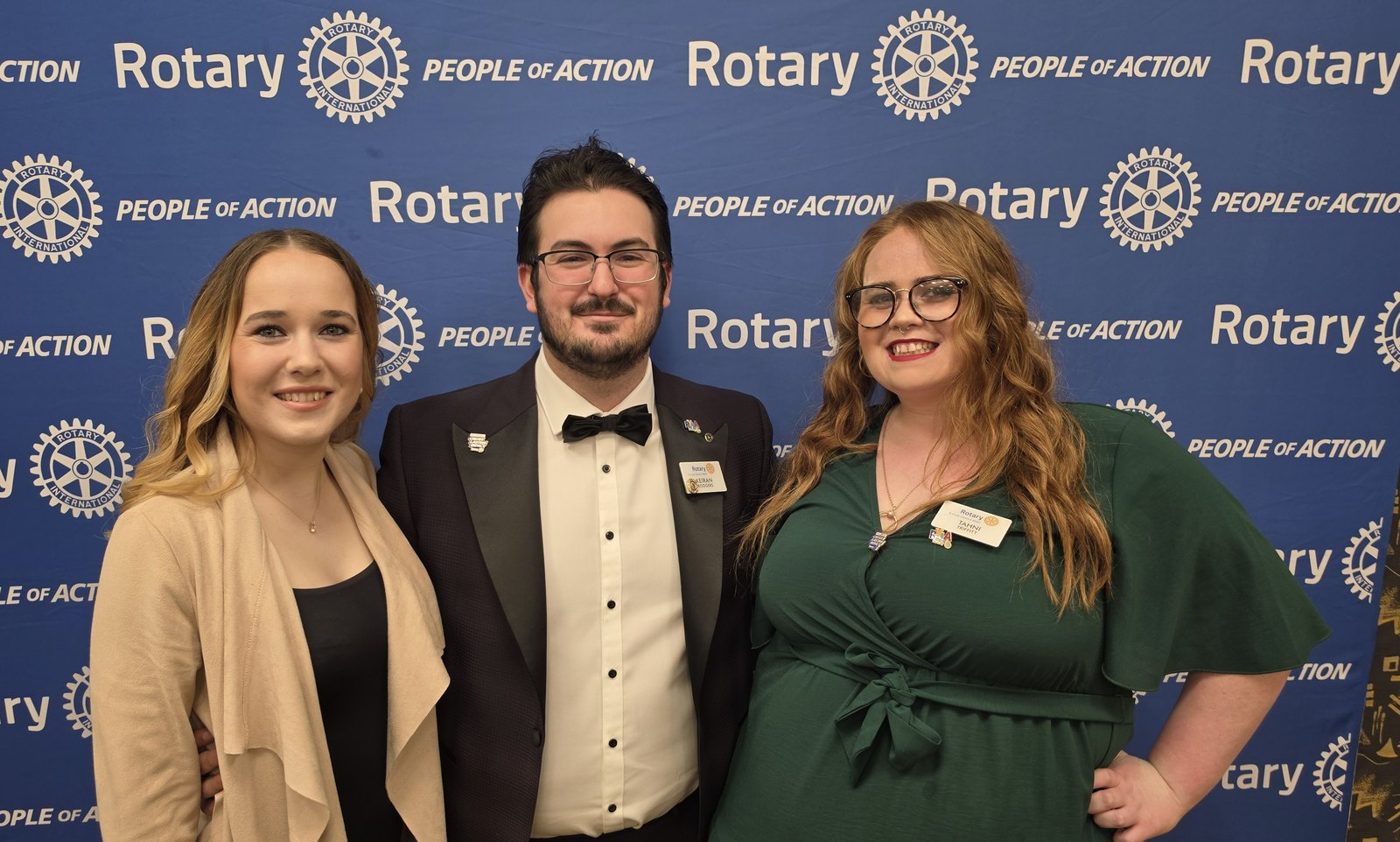
Fine for the album. A line-up in front of a banner tells a stranger nothing. (That's the district PI Chair in the middle.)
Better photos in sixty seconds
- Get close. Fill the frame with faces and hands. Step in, don't zoom.
- People doing things. Action, not line-ups. Catch the moment, not the pose.
- Light on their faces. Stand with the light behind you. Never shoot into a window.
- Landscape or portrait? Landscape (sideways) for the website and Spotlight. Portrait (upright) for reels and stories.
- Hold still for video. Two hands, elbows in, 10 to 20 seconds a clip. Wipe the lens first.
- Ask first. Get people's agreement before you post. Avoid posting children or young people where they are prominent and identifiable, including Interact members and Youth Exchange students. If one does appear, get a parent or guardian's signed consent first. See privacy and consent.
Light, tight and bright
Rotary International asks for the same thing: photos that "tell a genuine story", taken documentary style with people who aren't posing (Rotary Brand Center, images and videos).
- Take lots: before, during and after. Choosing from fifty is easier than rescuing one.
- Ask one member to be the photographer at each event, so you can enjoy it too.
- No photo of your own? Use Rotary's People of Action photos from the Brand Center rather than generic stock images.
Video
- Short works best. Reels under 90 seconds; for Spotlight, two minutes at most, in MP4.
- Upright for reels and stories, sideways for everything else.
- Show, don't tell: people doing the project, not someone reading a speech.
- Rotary's own 30 and 90-second videos can be customised with your club's details at the end (Brand Center, images and videos).
Two to four action photos and a few lines on what happened: we do the rest. Spotlight: districtnewsletter@rotary9660.org.au. District social media: socialmedia@rotary9660.org.au.