


Sign In to Microsoft 365
Step 1 of 3 - Use your temporary password to access your account for the first time.
1
Sign In
2
Change Password
3
Set Up MFA
What you need: Your Rotary email address (e.g.
jane.smith@rotary9660.org.au) and the temporary password sent to you by the IT team.
Sign-in steps
Select your device:
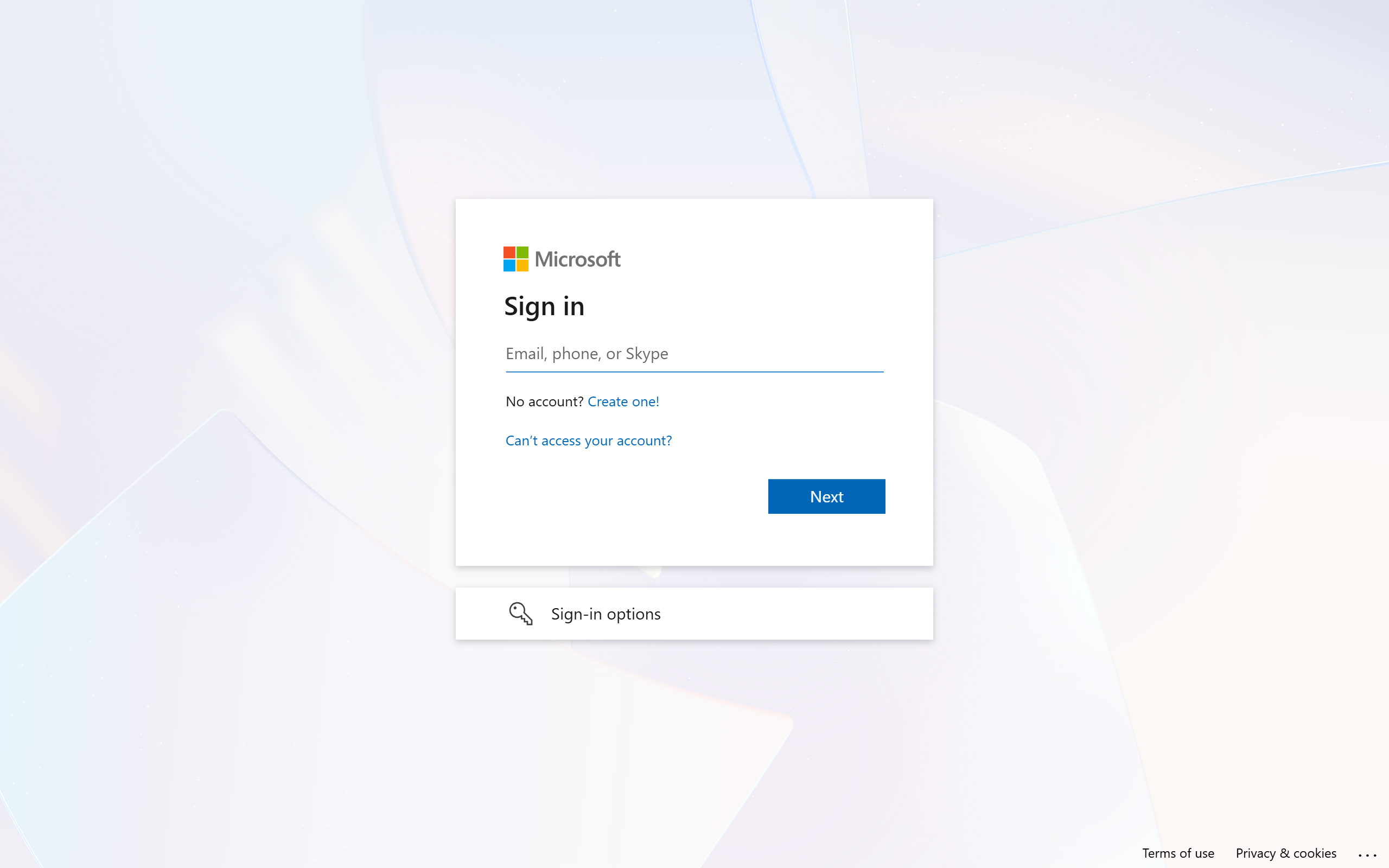
- Open your web browser (Chrome, Edge, or Safari) and go to office.com or rotaryd9660.sharepoint.com. Either will take you to a Microsoft sign-in page.
- Enter your Rotary email address in the format
firstname.lastname@rotary9660.org.auand click Next. - Enter your temporary password exactly as provided - including capitals, numbers, and symbols - then click Sign in. Passwords are case-sensitive. Check for any accidental spaces.
- Microsoft will immediately ask you to change your password. That is normal. Continue to Step 2.
- If a box asks "Stay signed in?", click Yes on your personal device or No on a shared computer.
You can sign in using a browser or directly through a Microsoft app like Outlook or Teams.
To sign in via browser (Safari):
- Open Safari and go to office.com.
- Enter your Rotary email address (
firstname.lastname@rotary9660.org.au) and tap Next. - Enter your temporary password and tap Sign in.
- Microsoft will ask you to change your password. Continue to Step 2.
To sign in via an app (e.g. Outlook):
- Download Microsoft Outlook from the App Store.
- Open the app and tap Add Account.
- Enter your Rotary email address and follow the prompts. Microsoft will guide you through signing in with your temporary password.
You can sign in using a browser or directly through a Microsoft app like Outlook or Teams.
To sign in via browser (Chrome):
- Open Chrome and go to office.com.
- Enter your Rotary email address (
firstname.lastname@rotary9660.org.au) and tap Next. - Enter your temporary password and tap Sign in.
- Microsoft will ask you to change your password. Continue to Step 2.
To sign in via an app (e.g. Outlook):
- Download Microsoft Outlook from the Google Play Store.
- Open the app and tap Add Account.
- Enter your Rotary email address and follow the prompts.
Password not working? Do not guess repeatedly - your account may lock. Email the Rotary District 9660 IT Team at support@rotary9660.org.au and they will reset your temporary password.