


RYVID Online Form
Submit your Rotary Youth Volunteer Information and Declaration online with a two-step signing process.
On this page
What is the RYVID form?
The Rotary Youth Volunteer Information and Declaration (RYVID) is required for all adults who volunteer with Rotary youth programs in District 9660. It collects:
- Personal details and employment
- Program involvement (RYPEN, RYLA, Youth Exchange, or other)
- Three personal references (only one may be a Rotarian, none may be family)
- Working With Children Check (WWCC) details
- Criminal history declaration
- A nominated Rotary endorser
The online form replaces the paper version (V9 09/2025). No login is required.
How it works
flowchart TD
    A["Applicant submits the form"] -- "email sent to endorser" --> B["Endorser signs"]
    A -- "email sent to the chair(s)" --> C["Committee chair records
reference checks"]
    B --> D["Both complete:
declaration finalised"]
    C --> D
    D --> E["Compliance register updated automatically,
applicant emailed the signed PDF,
chair(s) receive the full PDF with interview notes"]
| Step | What happens | Who is notified |
|---|---|---|
| Applicant submits | Declaration saved, PDF generated | Applicant, endorser, program chair(s) |
| Reference checks recorded | Committee chair records interviews via the form link | Applicant is notified that checks are done |
| Endorser signs | Endorser signs the declaration | Applicant is notified |
| Both steps complete | Declaration finalised, compliance register updated (RYVID and WWCC) | Applicant receives completion email with signed PDF |
The endorsement and reference checks can happen in any order. Whichever finishes second triggers the final completion.
Accessing the form
- Go to support.rotary9660.org.au/ryvid-form.html
- The form loads immediately. No sign-in is needed.
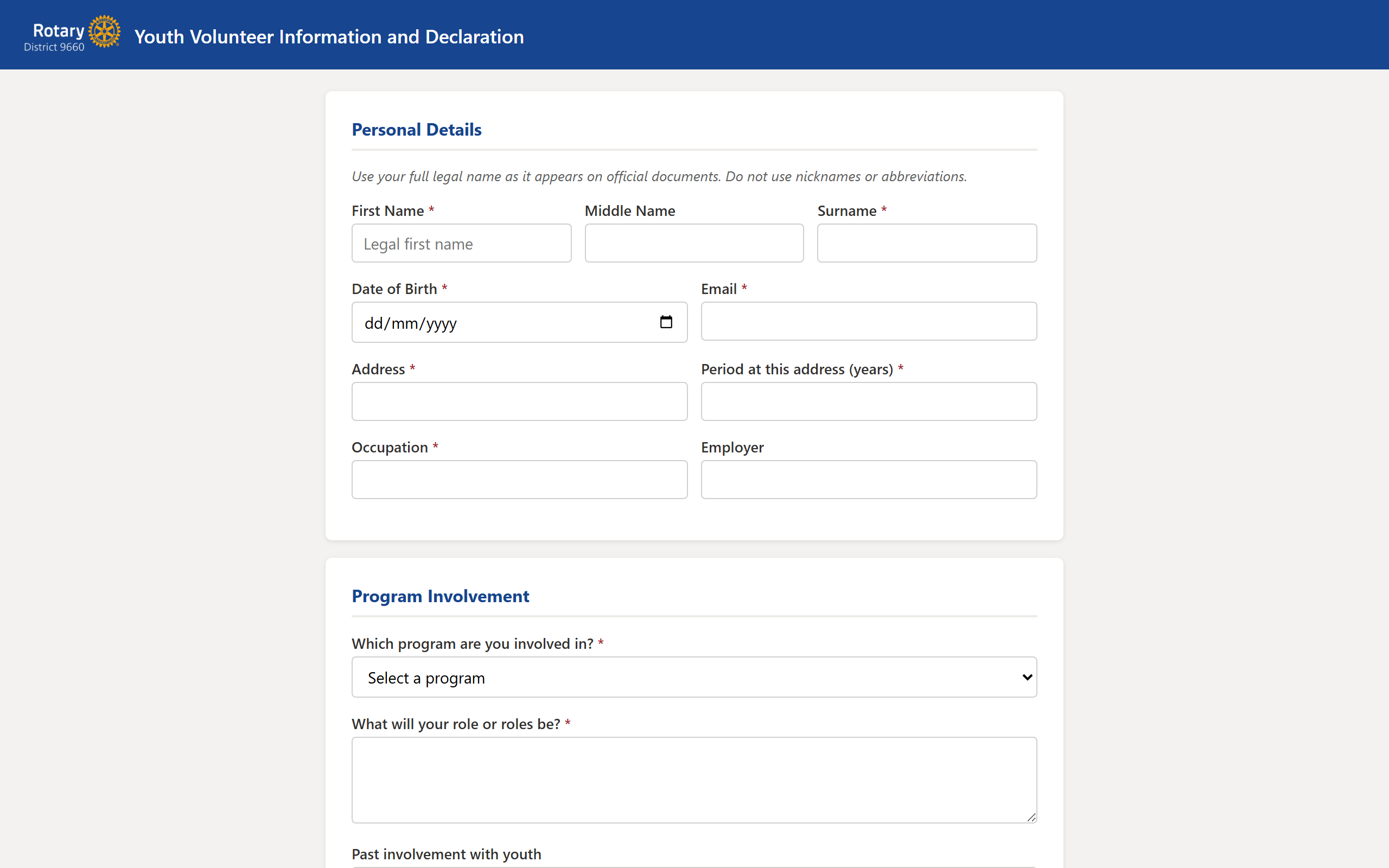
Volunteers do not need a Rotary Microsoft 365 account to access this form. Anyone with the link can fill it in.
Filling in the form
The form has seven sections:
- Personal Details: first name, middle name, surname, date of birth, email, address, period at address, occupation, and employer.
- Program Involvement: select the program you are volunteering with. If you select "Other", you will be asked for the program name, chair name, and chair email. Describe your role and any past involvement with youth.
- Personal References: three referees with name, email, phone, relationship to you, and their role or occupation. Only one referee may be a Rotarian and none may be family members.
- Police Check and Criminal History: your WWCC number and expiry date, plus a criminal history declaration.
- Rotary Endorser: the name, email, position, and club of a Rotarian who will endorse your declaration. This person will receive an email with a link to sign.
- Declaration: read the declaration text carefully. Your name and today's date are filled in automatically.
- Applicant Signature: draw or upload your signature.
All fields marked with a red asterisk (*) are required.
Adding your signature
At the bottom of the form you will see a signature area with two tabs:
- Draw: sign directly on the canvas using your mouse, trackpad, or finger on a touch screen. Use the Clear button to start over.
- Upload image: click or drag an image file (PNG, JPG) of your signature.
Your signature is required before the form can be submitted.
Submitting the form
Once all required fields are filled and your signature is in place:
- Click Submit Declaration.
- The form generates a PDF of your completed declaration.
- Three things happen automatically:
- You receive a confirmation email.
- Your nominated endorser receives an email with a link to review and endorse your declaration.
- The program chair(s) for your selected program(s) receive a notification with your declaration attached so referee checks can begin.
After you submit, two things happen independently: your nominated endorser is asked to sign, and the program committee chair receives a link to record reference checks. The declaration is only marked complete once both steps are done. You will receive an email at each stage.
Endorsement
If you have been nominated as an endorser, you will receive an email from support@rotary9660.org.au with a blue "Endorse Declaration" button.
- Click the button in the email to open the endorsement page.
- Review the PDF of the applicant's declaration.
- Draw or upload your signature.
- Click Submit Endorsement.
Once you sign:
- If reference checks have already been completed, the declaration is finalised. Both you and the applicant receive a confirmation email with the fully signed PDF, and the applicant is added to the District Compliance Register (RYVID and WWCC records).
- If reference checks are still pending, the applicant receives a notification that the endorsement is done, and the declaration will be finalised once reference checks are also recorded.
If you were not expecting this request or do not know the person, do not sign. Contact support@rotary9660.org.au instead.
Reference checks (for committee chairs)
When a RYVID declaration is submitted, the relevant program committee chair receives an email with the applicant's declaration attached and a blue Record Reference Checks button.
Contacting referees
You have two options for each referee:
Option A: Send a self-service link (recommended for email)
- Click Email Referee next to the referee's name. This opens a pre-written email in your mail client containing a link to a short online form.
- The referee clicks the link, answers 4 questions, and submits directly.
- When you reload the submission, their answers appear pre-filled and editable. You can review or amend before saving.
Option B: Contact them yourself
Call, meet in person, or email the referee and record their responses manually in the form.
Tracking referee status
When you use the Email Referee button, the form tracks each referee's progress:
- Email sent: you clicked the button and the email was opened in your mail client
- Link opened: the referee opened the self-service form
- Reference submitted: the referee submitted their answers
These flags appear next to each referee's name when you load the submission.
Recording reference checks
- Click the button in the email to open the reference check form. The applicant's details and referee information are loaded automatically.
- For each referee, record the date of contact, method (phone, email, in person, or self-service), and their responses to the four structured questions. Click Save on each referee card individually. You do not need to complete all three at once: save what you can and return later using the same link.
- Once all three referees are saved, the overall assessment section becomes available. Provide your comments and select whether the applicant is Suitable or Not Suitable.
- Read the interviewer declaration, enter your name, email, and phone, then draw or upload your signature.
- Click Submit Interview Record.
Once submitted:
- If the endorser has already signed, the declaration is finalised immediately. The applicant receives a completion email, and compliance register entries are created.
- If the endorser has not yet signed, the declaration remains pending until they do.
The endorsement and reference checks can be completed in any order. Whichever finishes second triggers the final completion step.
Admin screen (progress dashboard)
The admin screen gives committee chairs and the Youth Protection team a single place to see the progress of every RYVID submission, open full detail, and chase up anything that has stalled.
Access is limited to committee chairs, the Youth Protection team, the District Governor, and the Global Admin. It is enforced on the server, so anyone else who opens the link is signed in and then shown "Access denied". You must sign in with your Rotary Microsoft 365 account.
Address: support.rotary9660.org.au/ryvid-admin
Reading the list
The table shows one row per submission. You can filter by program, by status ("Incomplete only" or "Complete"), and by name, and sort by Applicant, Submitted, or Status.
| Column | What it shows |
|---|---|
| Witness | Endorsed once the endorser has signed, otherwise Awaiting. |
| Ref 1 / 2 / 3 | Complete when the referee submitted online or the chair recorded the check (for example Self-Service). Otherwise Opened, Emailed, or Pending. A dash means no referee is on file for that slot. |
| Status | The overall status of the declaration (for example Pending or Complete). |
A reference check counts as complete once the chair records it, even if the referee was contacted by phone or in person (Self-Service) and never received a link. The badge reflects whether the check is done, not just whether an email was sent.
Opening a submission
Click any row to open the detail view. It shows the applicant's details, Working With Children Check, all three referees (with each reference-check answer shown against its question), the endorser, and a Download PDF button for the signed declaration.
Actions in the detail view
- Open edit screen (record checks): shown for submissions that are not yet complete. Opens the committee-chair reference-check form for that applicant (the same screen the chair email links to), where you record or amend referee checks.
- Email [referee name]: next to each referee, opens a pre-written email to that specific referee with their self-service link, and marks them as Emailed. This is the same action as the Email Referee button on the chair form, so it is always clear which referee you are contacting.
- Resend witness endorsement: re-sends the endorser their signing email. Hidden once the endorser has signed.
- Resend reference-check request to chair: re-sends the program chair the notification with the applicant's declaration attached.
What happens after submission
All submissions are logged to a SharePoint list on the Youth Protection site. The program chair and Youth Protection team can view submission status and referee details there.
Troubleshooting
The form does not load
The form requires JavaScript to be enabled. Try a different browser or disable any ad blockers that may be interfering. The form works on desktop, tablet, and mobile.
The signature canvas is blank or tiny
Resize your browser window slightly. The canvas adjusts to the available width. On a very narrow screen, try landscape orientation or use a desktop browser.
My endorser did not receive the email
Ask them to check their Junk or Spam folder. The email comes from support@rotary9660.org.au. If they still cannot find it, email IT support with the applicant name and submission time.
The endorsement link says "already completed"
Each declaration can only be endorsed once. If the endorser has already signed, the link will show a message confirming the declaration is complete.
I made a mistake on my form
The form cannot be edited after submission. Fill in and submit a new declaration. The previous submission will remain in the system but the latest one takes precedence.
Still stuck? Email support@rotary9660.org.au with a screenshot.