


Child Safe Code of Conduct
Sign the District 9660 Child Safe Code of Conduct online before a youth event, with the signed PDF emailed to you and the organising team automatically.
On this page
What is the Code of Conduct?
The Child Safe Code of Conduct sets out how Rotarians, partners and volunteers behave around children and young people at Rotary District 9660 youth events. It lists the behaviours you commit to (treating children with respect, keeping communication appropriate, following reporting obligations) and the behaviours that are never acceptable.
Signing it online replaces the paper form. When you submit, the form generates a signed PDF and emails it to you, the event's organising team, and the Youth Protection committee. For the named programs (RYPEN, RYLA, Youth Exchange, NYSF, Public Speaking) the organising team is that program's mailbox; for any other district activity it is the organiser or chair you name on the form.
Who needs to sign it
Every Rotarian, partner or volunteer taking part in a district youth event signs a Code of Conduct for that event. The declaration also confirms you have watched the District 9660 Youth Protection video in the current Rotary year.
The declaration is reviewed at the end of the current Rotary year (30 June), so you sign again for events in the new Rotary year.
The Code of Conduct is signed per event, on top of your Working With Children Check or RYVID clearance, not instead of it.
Accessing the form
Go to support.rotary9660.org.au/code-of-conduct.
No sign-in is required. The form works on desktop, tablet and mobile.
How it works at a glance
flowchart TD
    A["Open the form - no sign-in needed"] --> B["Enter your details and pick
the program or activity"]
    B --> C["Read the code and
tick the declaration"]
    C --> D["Draw or upload your signature"]
    D --> E["Submit - a branded PDF is
generated in your browser"]
    E --> F["PDF emailed to the organising team
and Youth Protection, with a copy to you"]
    E --> G["Filed automatically on the
Youth Protection SharePoint site"]
Filling in the form
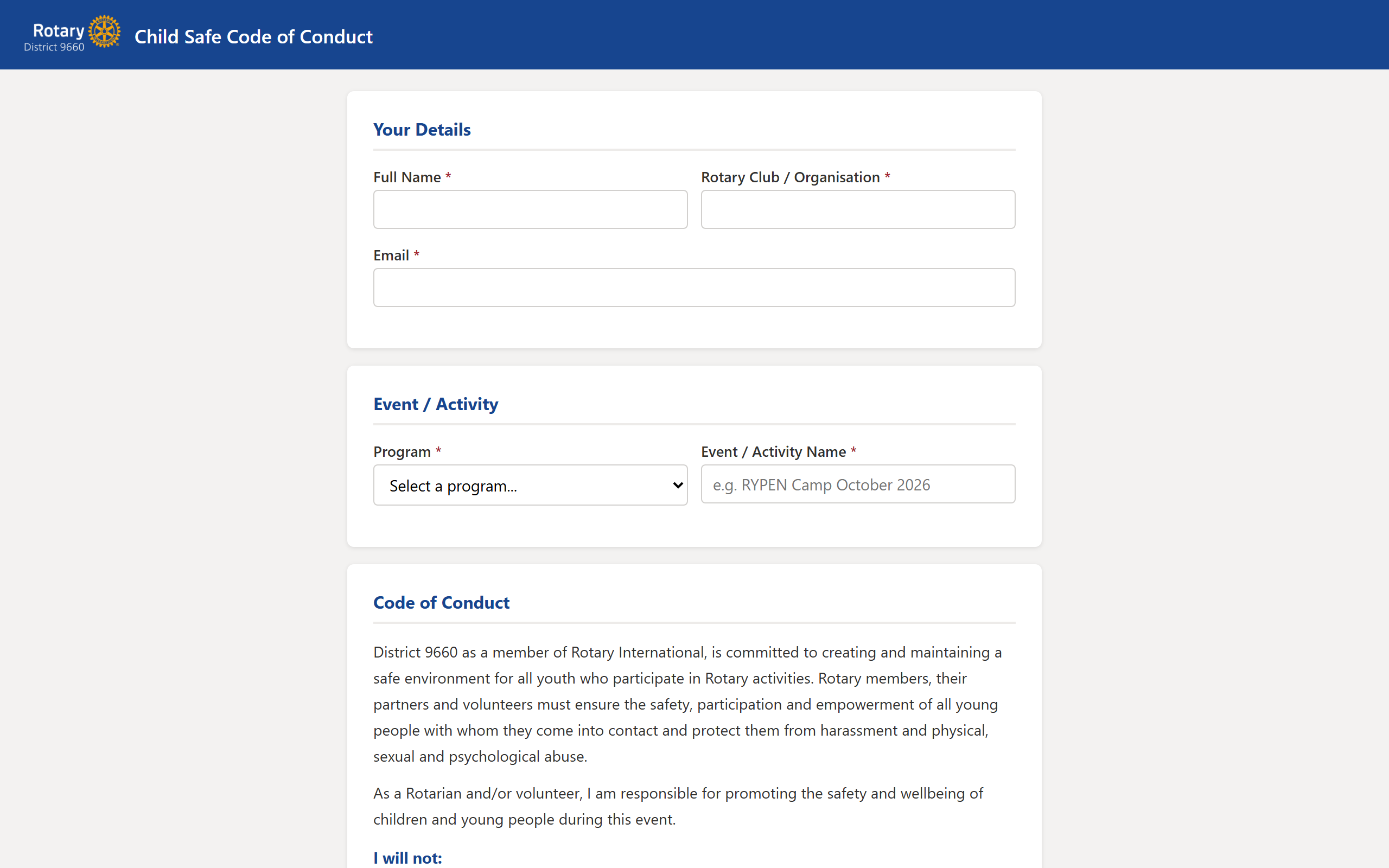
- Your Details - your full name, Rotary club or organisation, and email address. Your email is used to send you a copy of the signed PDF.
- Event / Activity - pick the program (RYPEN, RYLA, Youth Exchange, NYSF, Public Speaking, or Other district activity) and enter the event name, for example "RYPEN Camp October 2026". The program you pick determines which organising team receives your form. If you pick Other district activity, extra fields appear asking for the organiser or chair's name, email, and phone, so your signed form reaches the right person.
- Code of Conduct - read the full code. It is the same wording as the official district document.
- Declaration - tick the box to confirm you agree to the code and have watched the District 9660 Youth Protection video this Rotary year.
Adding your signature
At the bottom of the form you will see a signature area. You have two options:
- Draw your signature directly on the canvas using your mouse, trackpad, or finger on a touch screen.
- Upload image to load an image file (PNG, JPG) of your signature from your computer.
Use the Clear button to start over if needed. Your signature is required before the form can be submitted.
Submitting
Once everything is filled in:
- Click Submit Code of Conduct.
- The form generates a branded PDF with your details, the full code text, and your signature.
- The PDF is emailed to the organising team (the program's mailbox, or the organiser you named for other activities) and the Youth Protection committee, with a copy to your email address.
- A confirmation message appears on screen when it has been sent.
Where submissions go
Every submission is filed automatically on the Youth Protection SharePoint site:
- The signed PDF is stored in the Compliance > Code of Conduct folder.
- A row is added to the Code of Conduct Submissions list recording who signed, for which event, and when.
Only users with access to the Youth Protection site can view these records.
Troubleshooting
The signature canvas is blank or tiny
Resize your browser window slightly. The canvas adjusts to the available space. If you are on a very narrow screen, try landscape orientation on a tablet or use a desktop browser.
I get an error when submitting
Check that all required fields are filled in (name, club, email, program, event name, the declaration tick box, and your signature). If the error persists, take a screenshot and email support@rotary9660.org.au.
I did not receive my copy
Check Junk or Spam. The email is sent from support@rotary9660.org.au. If it is still missing, the organising team's copy will have gone through; email IT support if you need yours re-sent.
Still stuck? Email support@rotary9660.org.au with a screenshot.