


Email and Basics
Reading, writing, and organising your Rotary email on any device.
Installing the Outlook app
You can access Outlook in a browser at outlook.cloud.microsoft. The mobile app is useful for reading and replying to email on the go.
Select your device for installation steps:
- Open the App Store and search for "Microsoft Outlook".
- Tap Get to install.
- Open the app and tap Add Account.
- Enter your Rotary email address (
firstname.lastname@rotary9660.org.au) and tap Add Account. - Follow the prompts to sign in and complete your MFA check.
- Allow notifications when asked so you receive email alerts.
- Your Rotary account will appear alongside any personal accounts already in the app. You can have multiple accounts in one Outlook app.
- Open the Google Play Store and search for "Microsoft Outlook".
- Tap Install.
- Open the app and tap Add Account.
- Enter your Rotary email address (
firstname.lastname@rotary9660.org.au) and follow the prompts. - Allow notifications when asked.
Check you are in the right account. Your Rotary email address (
firstname.lastname@rotary9660.org.au) is separate from any personal Microsoft account you may have. On the web, check the account name in the top-right corner. In the Outlook app, tap the profile icon to see which account is active.
Signing in to Outlook
Select your device:
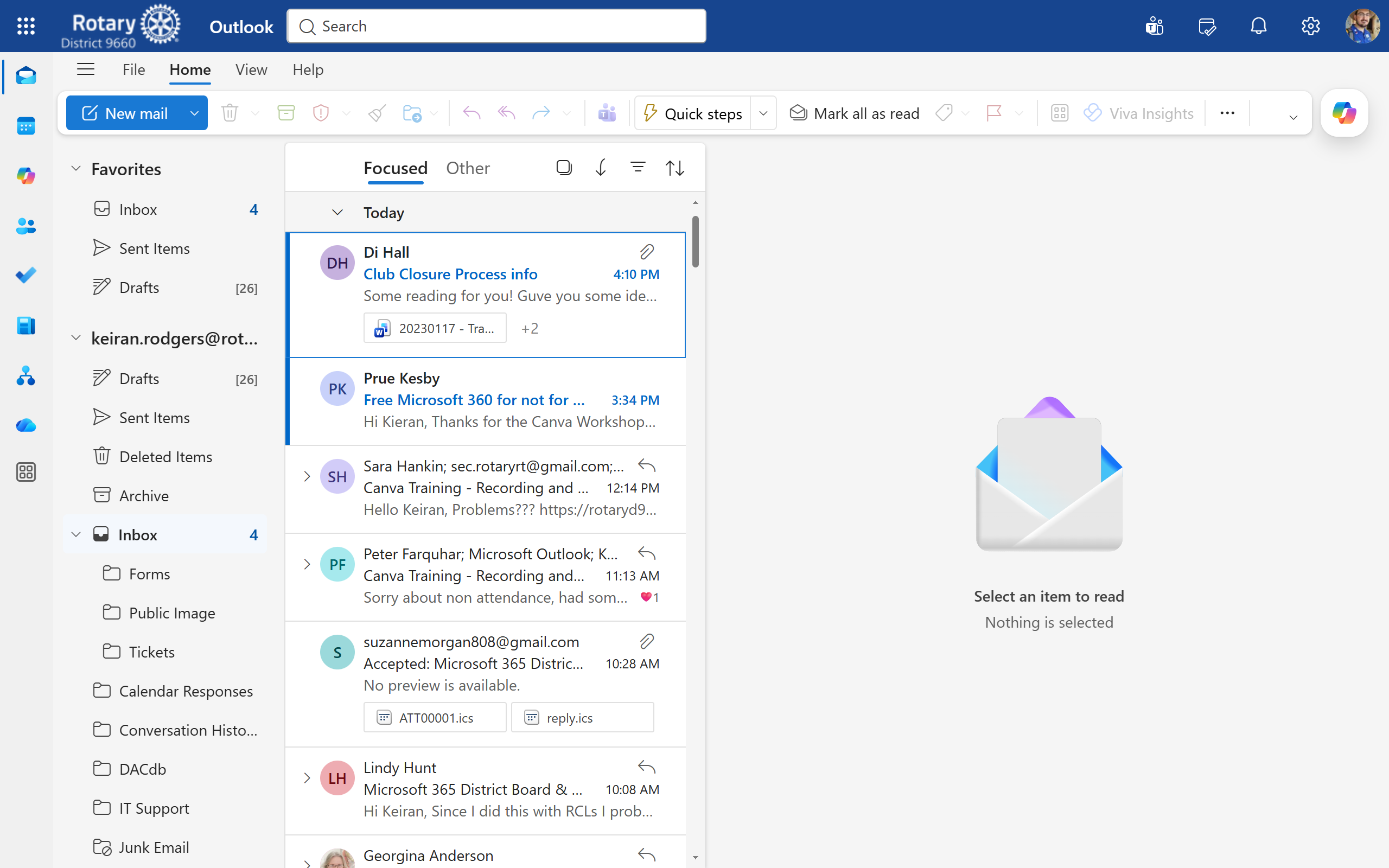
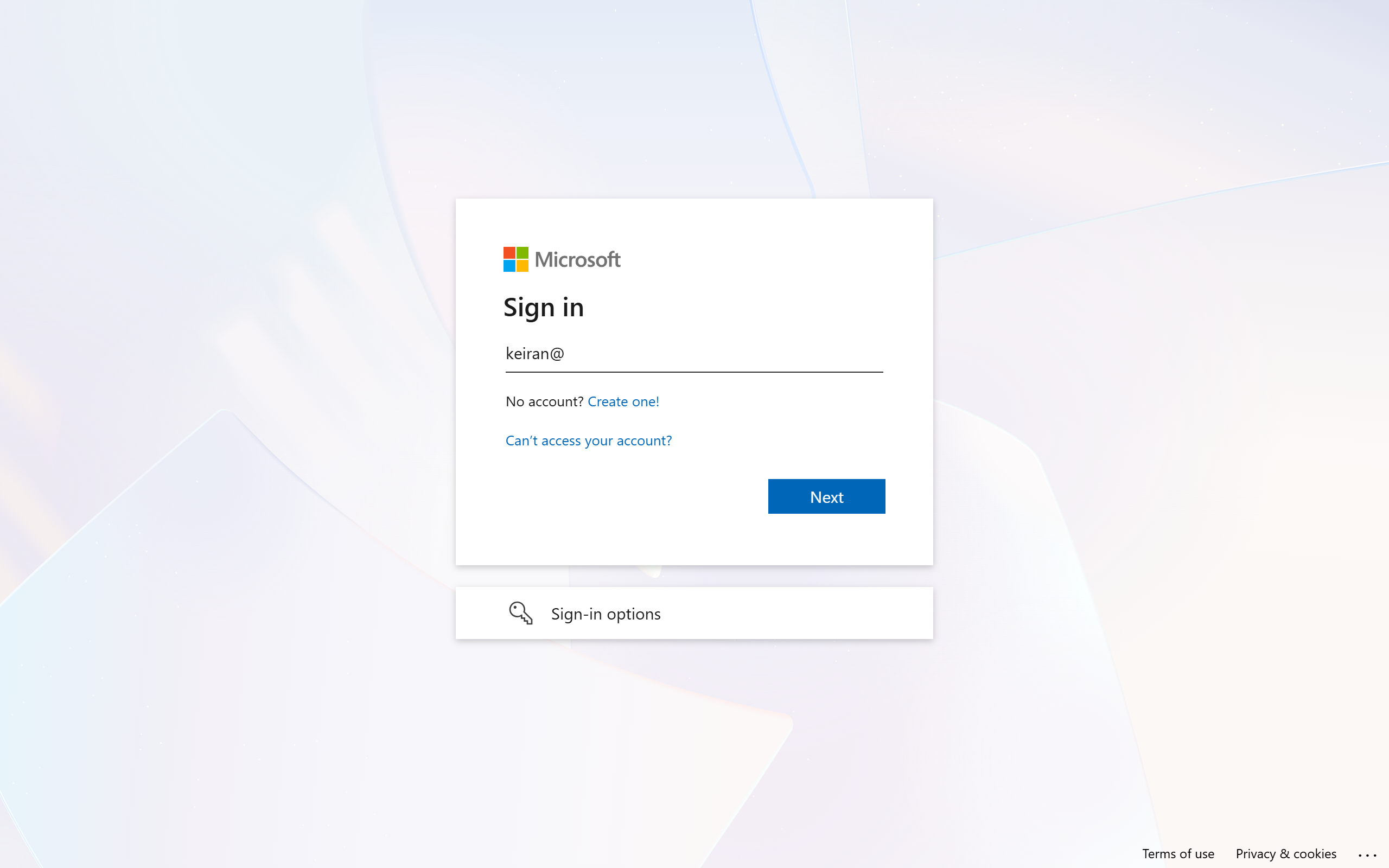
- Go to outlook.cloud.microsoft in your browser.
- Enter your Rotary email address and password, then complete your MFA check.
- Your inbox will open. Alternatively, go to office.com and click the Outlook tile.
- Open the Outlook app on your iPhone or iPad.
- Tap your account name at the top to see which account is active.
- If your Rotary account is not showing, tap the profile icon → Add account → enter your Rotary email address.
Screenshot (iPhone): Outlook inbox
- Open the Outlook app on your Android phone.
- Tap the profile icon in the top-left to see which account is active.
- If your Rotary account is not showing, tap Add account and enter your Rotary email address.
Screenshot (Android): Outlook inbox
Reading and replying to email
Select your device:
- Click on an email in your inbox to open it.
- To reply, click Reply at the top or bottom of the email. To reply to everyone in the thread, click Reply all.
- Type your reply and click Send.
- Tap an email to open it.
- Tap the Reply arrow icon at the bottom of the email.
- Choose Reply or Reply all.
- Type your reply and tap the send arrow.
When replying to a committee email, use Reply All only if everyone in the thread needs to see your reply. Reply (not Reply All) keeps inboxes less cluttered.
Writing a new email
Select your device:
- Click New mail in the top-left corner of Outlook.
- In the To: field, type the recipient's name or email address. Outlook will suggest contacts.
- Add a subject in the Subject: field.
- Type your message in the body area.
- Click Send.
- Tap the compose button (pencil icon, usually in the bottom-right corner).
- Tap the To: field and type the recipient's name or email address.
- Add a subject and your message.
- Tap the send arrow.
CC and BCC
- CC (carbon copy) - add someone to keep them informed. They can see the whole conversation and all other recipients can see they were copied.
- BCC (blind carbon copy) - same as CC but the other recipients cannot see who was BCC'd. Useful when emailing a large group who do not know each other.
On the web, click CC or BCC links next to the To: field. On mobile, look for CC & BCC below the subject line.
Organising your inbox
Select your device:
Creating a folder:
- In the left panel, right-click on Inbox and select Create new subfolder.
- Type a name and press Enter.
Moving an email to a folder:
- Right-click on the email.
- Select Move and choose the destination folder.
Flagging an email for follow-up:
- Hover over the email in your inbox. A flag icon will appear on the right.
- Click the flag to mark it. Flagged emails appear in your Flagged folder.
Moving an email:
- Open the email.
- Tap the folder icon (or the ... menu).
- Select Move to folder and choose where to send it.
Flagging an email:
- Swipe left on the email in your inbox.
- Tap the flag icon.
Setting an out-of-office reply
Select your device:
- Go to outlook.cloud.microsoft.
- Click the gear icon (Settings) in the top-right corner.
- Click View all Outlook settings at the bottom of the panel.
- Go to Mail → Automatic replies.
- Toggle Turn on automatic replies.
- Optionally set a start and end date.
- Type your out-of-office message and click Save.
- Open the Outlook app.
- Tap the profile icon in the top-left.
- Tap the gear icon (Settings) at the bottom-left.
- Tap your Rotary account name.
- Tap Automatic replies.
- Toggle it on and type your message.
- Tap the tick to save.