


Signing PDFs
Sign a PDF yourself, or send it to someone else for signing, without DocuSign, Adobe Sign, or printing anything.
On this page
What is the signing tool?
The district has a built-in PDF signing tool at support.rotary9660.org.au/sign.html. It lets you:
- Add your signature to any PDF stored in SharePoint or OneDrive.
- Email a signing request to anyone (members or external people) and have the signed copy come straight back into SharePoint.
- Skip third-party services like DocuSign and Adobe Sign for routine signing.
Your signature is saved to your OneDrive the first time you draw or upload it, so you only have to set it up once. It then follows you across every device you sign in on.
flowchart TD
    A["Click the blue Sign button next to
any PDF in a SharePoint library"] --> B{"Who is signing?"}
    B -- "You" --> C["Place your saved signature
on the PDF and save"]
    C --> D["Signed version replaces the file -
the original stays in version history"]
    B -- "Someone else" --> E["Send a signing request
with their name and email"]
    E --> F["They sign in their browser via a secure
link - no account or app needed"]
    F --> G["Signed PDF saved back to the same
SharePoint location, you get a confirmation"]
    E --> H["Request tracked in the Signing Requests
audit list - pending, completed or expired"]
Use it for internal forms, agreements, applications, and anything you would normally print, sign, scan, and upload. For legally significant external contracts, continue to use a dedicated e-signature service.
The Sign button in SharePoint
Every document library across the district has a Sign column. Whenever you see a PDF in a library, a small blue Sign button appears next to it.
Clicking that button opens the file directly in the signing tool, signed in as you, with the document already loaded. There is no copy-paste of URLs or upload step.
Some custom views may hide it. Click the column dropdown at the top of the library, choose Show or hide columns, and tick Sign. The button only appears next to .pdf files. Word and Excel files will show an empty cell, which is expected.
Signing a document yourself
- In any SharePoint document library, find the PDF you want to sign.
- Click the blue Sign button next to the file.
- Sign in with your Rotary account (only required the first time, or after a long break).
- The PDF loads on the right side of the page.
- Set up your signature on the left, using the Draw or Upload PNG tab. Click Use this signature.
- Click anywhere on the PDF where you want the signature to appear. Drag it to position, use the blue dot in the corner to resize, or click the red x to remove it.
- For multi-page PDFs you can place one signature per page.
- Click Save signed document. The original PDF in SharePoint is replaced with the signed version. The previous version is kept in version history if you ever need to revert.
Saving a signed copy does not delete the unsigned original. If you need to recover the original, right-click the file in SharePoint and choose Version history.
Sending a document to someone else for signing
Need a parent, school, supplier, or another committee member to sign something? You do not need to email it manually.
- Open the PDF using the Sign button as above.
- In the Actions card on the left, scroll to Request someone else's signature.
- Enter the signer's name and email address.
- Click Send signing request.
- The signer receives an email from your address with a secure link. They sign in their browser, with no account, no app, and no setup needed on their end.
- Once they sign, the signed PDF is saved back into the same SharePoint location, and you receive an email confirmation.
If the recipient does not sign within a week, the link stops working. You can resend it from the same page if needed.
Tracking signing requests
The signing tool keeps an audit list of every request that has been sent across the district. To view it:
- Open support.rotary9660.org.au/sign.html directly (no fileUrl in the URL).
- Sign in.
- Scroll down to the Signing Requests section.
You will see, for every request:
- Document: the file name
- Status: pending, completed, or expired
- Sent by: the coordinator who initiated the request
- Sent to: the signer's name and email
- Date sent: when the request was created
- Date signed: when (or if) the signer completed it
About your signature
Your signature is stored in your personal OneDrive at Apps > Rotary Sign > signature.png. This means:
- You only need to draw or upload it once. After that it auto-loads on every device you sign in on.
- It is not shared with anyone else.
- You can replace it at any time by drawing a new one, or uploading a new PNG file.
- If you want to delete it entirely, navigate to OneDrive > Apps > Rotary Sign and delete signature.png.
Troubleshooting
The Sign button does not do anything
You may be using a private or incognito window with cookies blocked. Open the file in a normal browser window. If it still fails, copy the SharePoint URL of the PDF and paste it manually at support.rotary9660.org.au/sign.html.
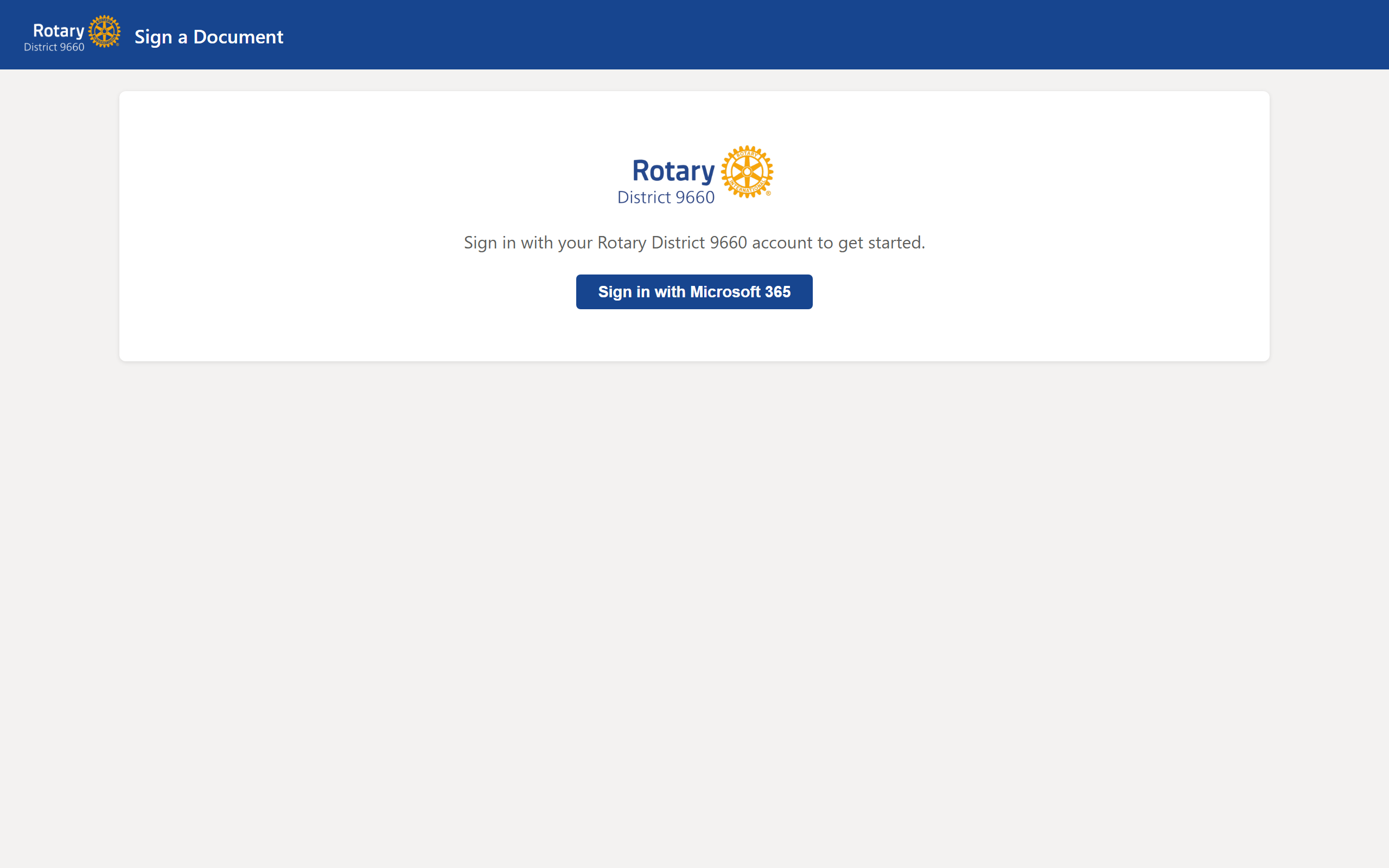
The page says "Sign in with Microsoft 365" but the popup closes immediately
Your browser is blocking pop-ups for support.rotary9660.org.au. Allow pop-ups for that site and try again.
I drew a signature but nothing places when I click the PDF
Make sure you clicked Use this signature after drawing. The blue confirmation message should say "Signature set. Click on the document to place it."
The signer never received the email
Ask them to check Junk or Spam. Emails are sent from your own Rotary address, not a no-reply, so they should land normally. If they still do not see it, you can copy the signing link from the audit list and send it through another channel.
I made a typo in the signer's email address
Send a new request with the correct email. The original will expire harmlessly in 7 days.
Still stuck? [Email support@rotary9660.org.au](mailto:support@rotary9660.org.au?subject=Signing tool issue) with a screenshot.