


Youth Protection Compliance Register
Look up WWCC and RYVID clearance status for Rotary volunteers in District 9660.
What is the Compliance Register?
The Compliance Register is a central record of Working With Children Check (WWCC) and Rotary Youth Volunteer ID (RYVID) clearances held by district volunteers. It is hosted on the Youth Protection SharePoint site.
Any district member with a Microsoft 365 account can search the register to check whether a volunteer's clearance is current, and every club has its own club lookup account for the same purpose (see below). This is particularly important for anyone organising youth events or programs.
Access levels
There are two ways to interact with the register, depending on your role.
Club Presidents & YPOs
Search by name and see:
- Full name
- Type (WWCC or RYVID)
- Status (Cleared, Expired, Pending, or Not Cleared)
- Expiry date
Can also add new records and record renewals using the club account (see below).
No reference numbers, notes, or attached documents are visible, and records cannot be deleted.
Administrators
Full access to all fields, including:
- Reference numbers
- Attached documents (scanned forms)
- Internal notes
- Club affiliation
Can add, edit, and delete records directly in SharePoint.
The Youth Exchange Program Chair, Youth Protection Chair, District Governor, and Global Admins have full access to the register.
How to look up a clearance
- Go to support.rotary9660.org.au/YP-Compliance-Register.
- Sign in with your Rotary Microsoft 365 account if prompted.
- Type the person's name (or part of it) into the search box and press Search.
- Matching records will appear showing their name, clearance type, status, and expiry date.
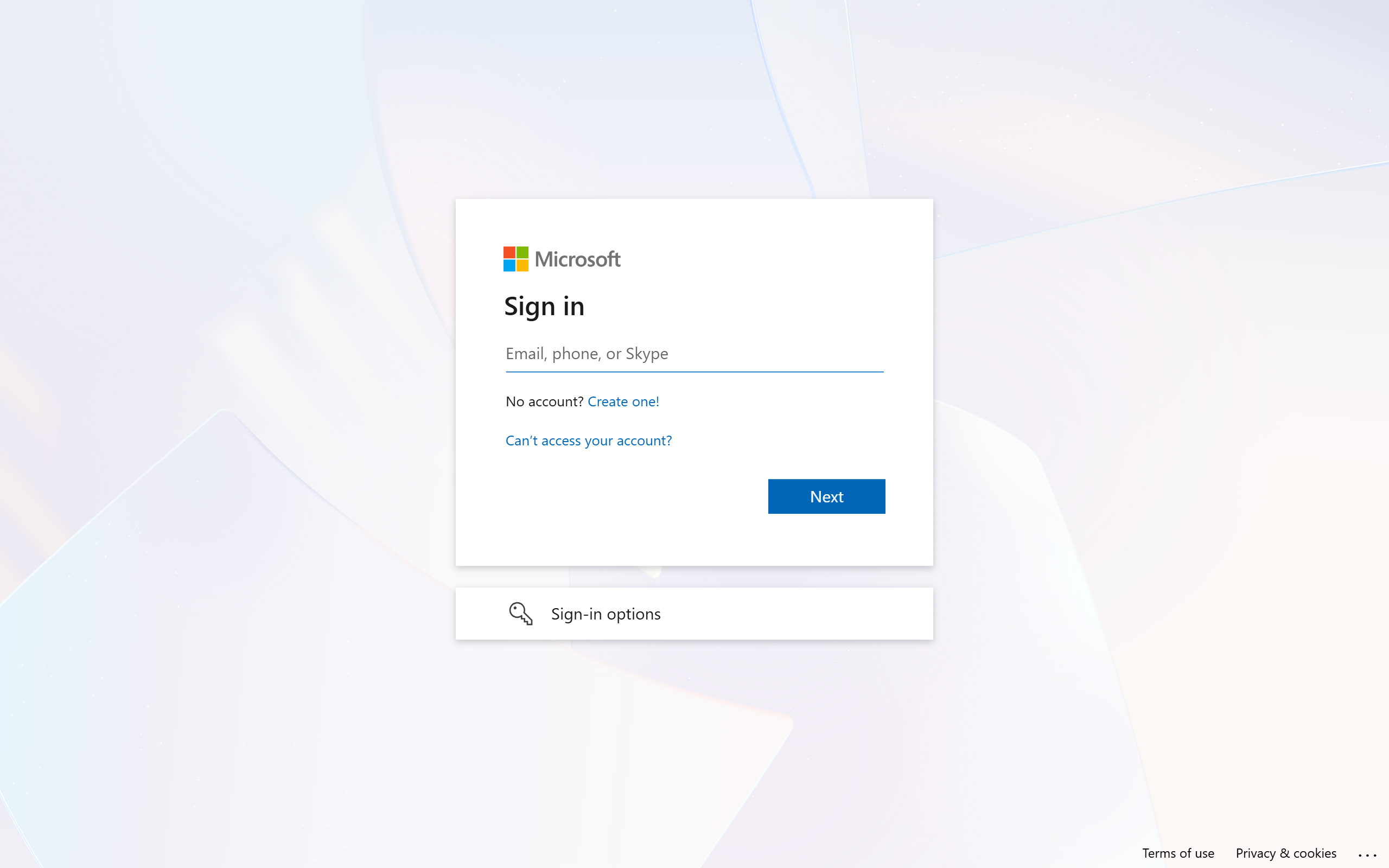
The lookup lives at support.rotary9660.org.au/YP-Compliance-Register, alongside the district's other online tools.
A status of "Cleared" means the clearance was valid when it was last updated. If the expiry date has passed, the clearance may no longer be current. Contact the Youth Protection Chair if you are unsure.
Understanding clearance statuses
| Status | What it means |
|---|---|
| Cleared | The person has a valid, current clearance of this type. |
| Pending | An application has been submitted but the clearance has not yet been issued. |
| Expired | The clearance has passed its expiry date and needs to be renewed. |
| Not Cleared | The application was declined or revoked. |
WWCC vs RYVID
| Type | What it is |
|---|---|
| WWCC | Working With Children Check. A government-issued clearance required for anyone working or volunteering with children in NSW. Issued by the Office of the Children's Guardian. |
| RYVID | Rotary Youth Volunteer ID. A Rotary-specific identification for volunteers involved in youth programs. Required by Rotary International in addition to the WWCC. |
Most volunteers involved in youth programs will need both a WWCC and a RYVID on record.
For clubs: your club lookup account
Every club in the district has its own sign-in for the Clearance Lookup, so club officers can check clearances without needing a personal Microsoft 365 account. The account is issued to the club President, who shares it with their Youth Protection Officer. With it your club can search clearances, add new records, and record renewals. It has no mailbox and no other services, and club accounts cannot delete records or open attached documents.
Your club's account name
Rotary clubs follow the pattern clubname.rc@rotary9660.org.au with the club name in lowercase and no spaces or punctuation. Rotaract clubs use clubname.rotaract@rotary9660.org.au. For example:
- Rotary Club of Cessnock: cessnock.rc@rotary9660.org.au
- Rotary Club of Dubbo South: dubbosouth.rc@rotary9660.org.au
- Rotary Club of Warner's Bay: warnersbay.rc@rotary9660.org.au
- Greater Hunter Rotaract: greaterhunter.rotaract@rotary9660.org.au
First sign-in
- Open support.rotary9660.org.au/YP-Compliance-Register.
- On the Microsoft sign-in page, enter your club's account name and the temporary password sent to your President.
- You will be asked to set a new password. Choose one and record it somewhere safe that both the President and Youth Protection Officer can access.
- You will then be asked to set up multi-factor authentication (MFA) using the Microsoft Authenticator app on a phone. Follow the on-screen steps.
- You land back on the Clearance Lookup, ready to search.
If the browser is signed in to a personal or work Microsoft account, choose Use another account on the sign-in screen and enter the club account instead.
Verifying a WWCC with the OCG
Before adding or renewing a WWCC record, verify the number with the NSW Office of the Children's Guardian (OCG). The Verify WWCC with OCG button at the top of the lookup opens the OCG employer portal, where you can confirm the WWCC number is valid and current. You will need an OCG employer login to use the portal.
The club workflow at a glance
flowchart TD
    A["Search the person's name in the lookup"] --> B{"Already in the register?"}
    B -- "No" --> C["+ Add Record with their details,
status and expiry"]
    B -- "Yes - WWCC renewal" --> D["Verify the number with the OCG"]
    D --> E["Renew / Update: new expiry,
reference and document"]
    B -- "Yes - RYVID renewal" --> F["Renew button opens the
online RYVID form"]
    F --> G["Register updates automatically once
endorsement and interview are recorded"]
Adding a record
When someone in your club obtains a new WWCC or RYVID:
- Sign in to the lookup with your club account and click + Add Record.
- Enter their name and contact details, tick WWCC, RYVID, or both, and fill in the reference number (WWCC only), status, and expiry date.
- Attach the scanned verification or signed form if you have it.
- Click Add Records. If the person already has a record of that type you will be warned before a duplicate is created; if they are renewing an existing clearance, use the renewal steps below instead.
Recording a renewal
When someone renews a WWCC the register already holds:
- Search their name in the lookup.
- Click Renew / Update on the matching result.
- Enter the new expiry date, the new reference number if it changed (WWCC renewals usually keep the same number), and attach the new verification if you have it.
- Click Save Renewal. The record's status and expiry update immediately.
RYVID renewals work differently: a RYVID requires a fresh, fully signed form, so the button on a RYVID result takes the person to the online RYVID application form instead. Once the endorsement and reference-check interview are both recorded, the register updates automatically - the person's existing RYVID record gets the new expiry date and document, with no manual step.
Changeover each July
Club account credentials are reset every year on 1 July. The incoming President, as recorded in DACdb, is emailed the account details and sent the new temporary password by SMS, and shares both with the incoming Youth Protection Officer. The first sign-in after changeover repeats the set-a-password and MFA steps above.
The changeover email goes to the President listed in DACdb. If your club's records are out of date, your club will not receive its new credentials.
Locked out?
If the password is lost or the person holding the MFA phone leaves the club, email support@rotary9660.org.au from a club officer's known address and a fresh temporary password will be arranged with your President.
For administrators: managing records
If you are one of the authorised administrators, you can add, edit, and delete records directly in the lookup tool (you do not need to open SharePoint). Admin controls appear automatically once you are signed in with an authorised account. The Verify WWCC with OCG button at the top of the page opens the OCG employer portal for checking a WWCC number before you record it.
Adding a new record
- Open the lookup and click + Add Record.
- Enter the person's first name, surname, email, and phone. Optionally add date of birth and club.
- Tick WWCC, RYVID, or both, then fill in the reference number (WWCC only), status, and expiry date for each.
- Optionally attach the scanned form (PDF or image).
- Click Add Records. If a matching record already exists you will be asked to confirm before a duplicate is created.
Viewing and updating records
- Click View All Records to see the full register in a sortable, filterable table.
- Use the filters (name, type, status) or column headers to find a record.
- Click Edit on a row to change any field (e.g. new expiry date or status), then Save Changes.
- Delete removes a record permanently. Prefer setting the status to Expired over deleting, to preserve the audit trail.
When a clearance expires, update the status to "Expired" rather than deleting the record. This preserves the audit trail. The person can be updated back to "Cleared" when they renew.
Contact the Youth Protection Chair or email youthprotection@rotary9660.org.au. For technical issues with the lookup tool, email support@rotary9660.org.au.