


Event Registration System
How to register for district events, and how to create and manage events as an organiser.
On this page
Overview
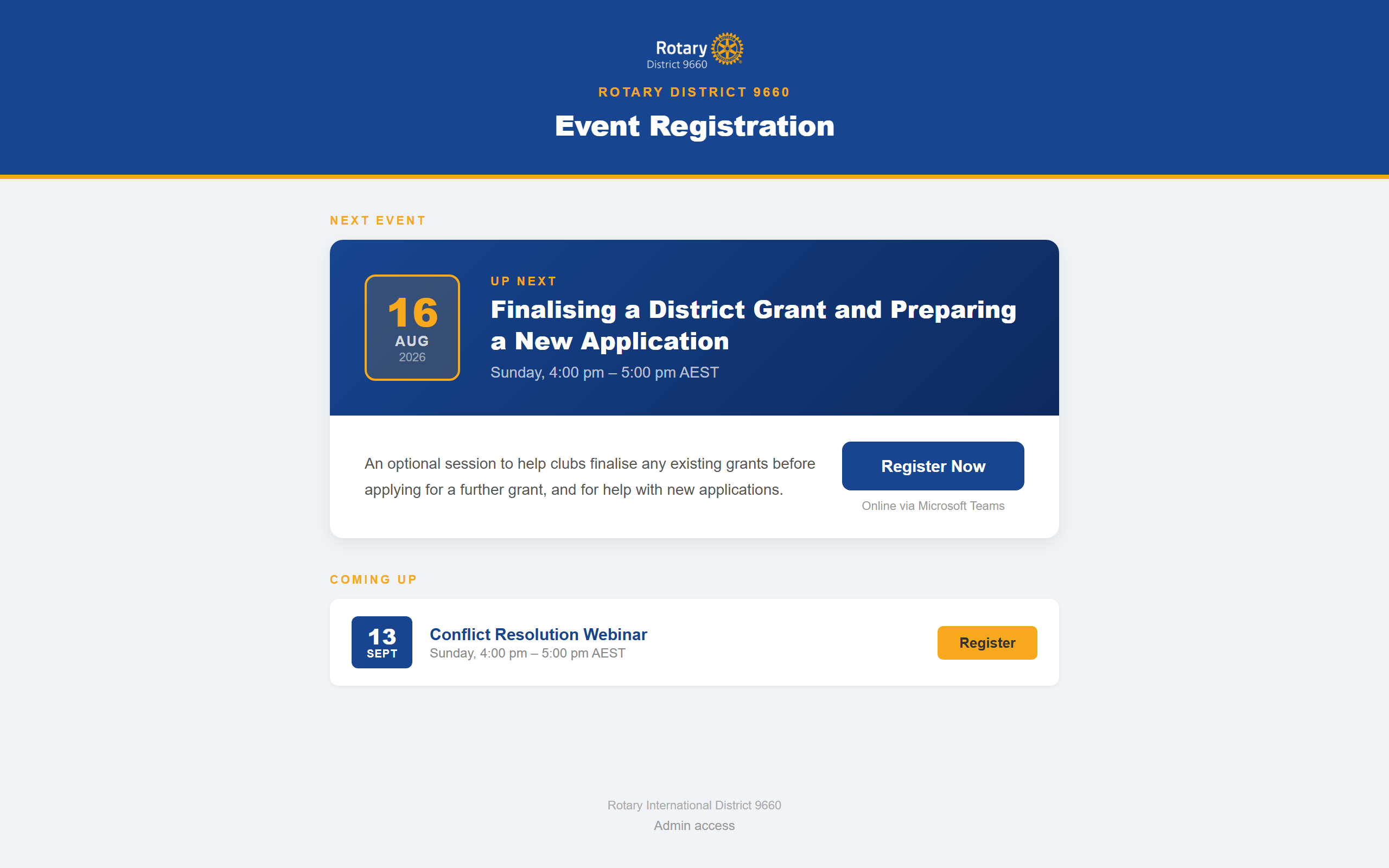
The district uses a centralised event registration system. A single RSVP link handles all events. The next upcoming event is featured prominently, with remaining events listed below. When a member registers, they receive a branded confirmation email with the Teams meeting join link and an Add to Calendar button. A notification is also posted to the Training RSVPs group chat so organisers are informed in real time.
flowchart TD
    A["Organiser creates the event
in the admin panel"] --> B["Teams meeting created automatically
unless a link is supplied"]
    B --> C["Event appears on the public RSVP page
and the district hub calendar"]
    C --> D["Member registers -
no Rotary account needed"]
    D --> E["Confirmation email with the Teams
join link and Add to Calendar"]
    D --> F["Notification posted to the
Training RSVPs group chat"]
    D --> H["Reminder email sent to each registrant
the evening before the event"]
    C --> G["Event automatically marked Completed
once its end time passes"]
Registering for an event
- Go to support.rotary9660.org.au/event-rsvp.
- The next upcoming event is displayed as a featured card. Additional events are listed below under "Coming Up".
- Click Register Now (on the featured event) or Register (on upcoming events).
- Fill in your details: First Name, Surname, Email, and Club Name.
- Click Register.
- A confirmation message will appear on screen with the Teams meeting join link.
- A confirmation email is sent to the email address you provided. It includes:
- The event date and time
- The full Teams meeting join link and a Join Teams Meeting button
- An Add to Calendar button that downloads a calendar file (.ics) you can open in any calendar app
- A link to help with joining Teams meetings
- Contact details for support
You do not need a district Microsoft 365 account to register. Anyone with the link can complete the form.
Creating and managing events
The admin panel requires a district Microsoft 365 account with admin access.
Accessing the admin panel
Go to support.rotary9660.org.au/event-rsvp-admin and sign in with your district account when prompted. There is also an "Admin access" link at the bottom of the public registration page.
Creating a new event
- On the Events tab, fill in the event title, date, start time, end time, and description.
- In the Teams Link field:
- Leave it blank to have a Teams meeting created automatically on the district meetings account (meetings@rotary9660.org.au).
- Paste an existing Teams link if you have already created the meeting yourself.
- Click Create Event.
The event will appear immediately on the public registration page, be added to the district hub site calendar, and a calendar invite will be sent from the meetings account to the IT Officer.
Sharing the registration link
Send registrants to: support.rotary9660.org.au/event-rsvp
This single link always shows current upcoming events. You do not need a separate link for each event.
Viewing registrations
- Click View RSVPs next to an event in the admin panel to see who has registered.
- Switch to the Registrations tab, select an event, and view the full list of registrants.
- Click Export CSV to download the registrations as a spreadsheet file.
Managing event status
Use the action buttons next to each event:
- Complete: marks the event as finished. It will no longer appear on the public registration page.
- Cancel: marks the event as cancelled. It will no longer appear on the public registration page.
Events are automatically marked as Completed once their end date and time have passed. You do not need to do this manually, but you can still complete or cancel an event early if needed.
What happens automatically
When an event is created:
- If no Teams link was provided, a Teams online meeting is created on the district meetings account (meetings@rotary9660.org.au).
- The event is added to the district hub site calendar.
- A calendar invite is sent from the meetings account with the Teams join link.
When a member registers:
- A branded confirmation email is sent to the registrant from meetings@rotary9660.org.au, including the Teams join link, an Add to Calendar button, and event details.
- A notification is posted to the Training RSVPs group chat with the registrant's name and club.
The evening before the event, every registrant is automatically sent a short reminder email from meetings@rotary9660.org.au with the event time and the Teams join link. No action is needed from the organiser.
After an event ends:
- The event is automatically marked as Completed once the end time has passed. This removes it from the public registration page.
For technical issues with the registration system, email support@rotary9660.org.au.