


Microsoft Teams
The district's hub for meetings, group communication, and file sharing.
Installing the Teams app
You can use Teams in a web browser without installing anything. But the app gives you a better experience, especially on mobile.
Select your device for installation steps:
- Open the App Store on your iPhone or iPad.
- Search for "Microsoft Teams".
- Tap Get to download and install the app.
- Open Teams and tap Sign in.
- Enter your Rotary email address (
firstname.lastname@rotary9660.org.au) and tap Next. - Enter your password and complete the MFA check on your phone.
- Teams will ask for permission to send notifications. Tap Allow - notifications keep you across committee activity. You can adjust what triggers a notification later in settings.
- Teams may also ask for microphone and camera access. These are needed for meetings. Tap Allow.
- Open the Google Play Store on your Android phone.
- Search for "Microsoft Teams".
- Tap Install.
- Open Teams and tap Sign in.
- Enter your Rotary email address (
firstname.lastname@rotary9660.org.au) and tap Next. - Enter your password and complete the MFA check.
- Allow notifications, microphone, and camera when prompted. These are needed for meetings and to stay informed.
- Go to microsoft.com/en-au/microsoft-teams/download-app.
- Click Download for desktop and run the installer.
- Once installed, open Teams and sign in with your Rotary email address (
firstname.lastname@rotary9660.org.au). - Complete your password and MFA check.
- Teams will also be available in your browser at teams.cloud.microsoft without installing anything.
Setting notification quiet hours
Here is exactly where to find notification settings on each platform:
Select your device:
- In Teams on the web (teams.cloud.microsoft), click the three dots (…) next to your profile picture in the top-right corner.
- Click Settings.
- Click Notifications and activity in the left panel.
- Adjust which events trigger notifications.
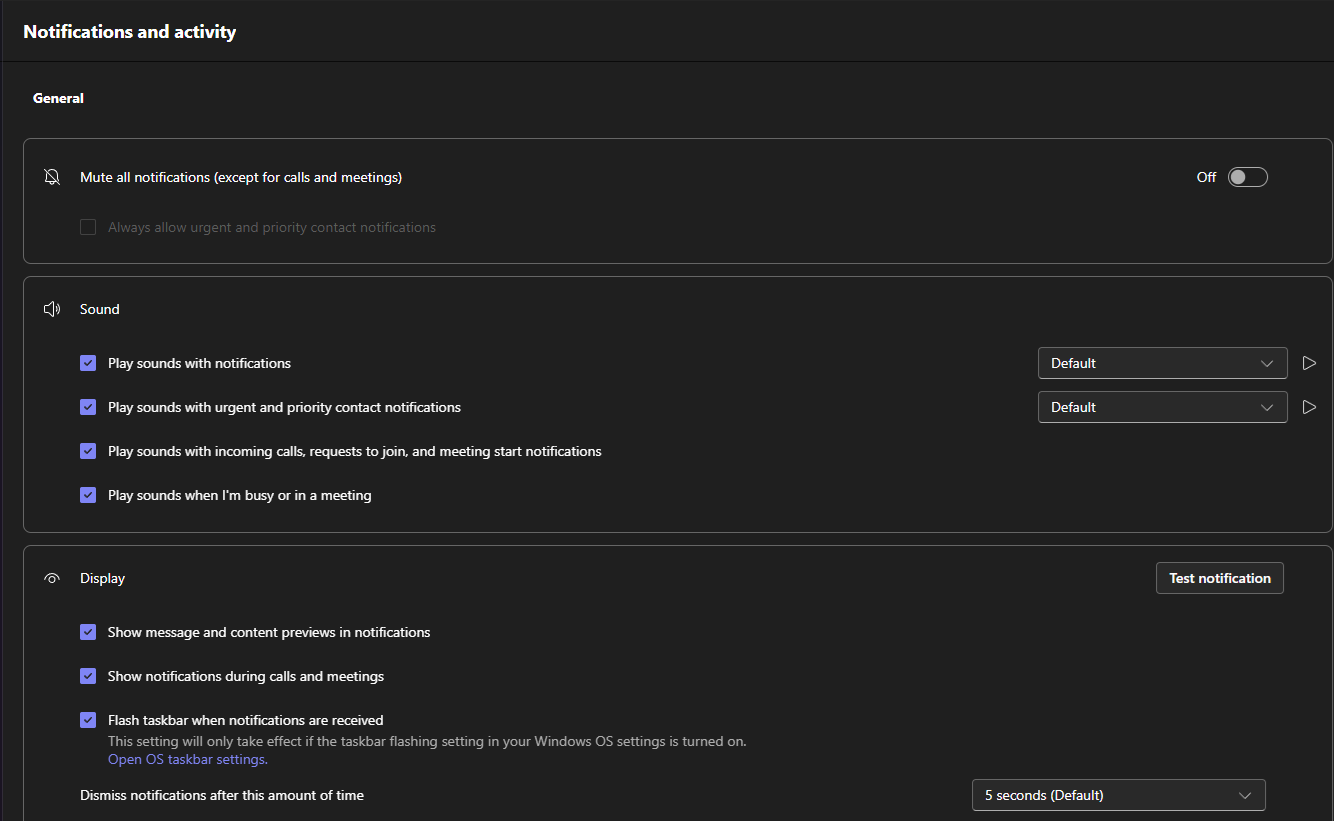
- In the Teams desktop app, click the three dots (…) next to your profile picture in the top-right corner.
- Click Settings.
- Click Notifications and activity.
- Adjust which events trigger notifications.
There are two ways to control notifications on iPhone:
From the iOS Settings app (for all Teams notifications):
- Open Settings on your iPhone.
- Scroll down and tap Teams.
- Tap Notifications to control how Teams alerts you.
From inside Teams (for quiet hours):
- Open Teams and tap your profile picture in the top-left.
- Tap Notifications.
- Tap Quiet hours and set your preferred times.
There are two ways to control notifications on Android:
From the Android Settings app:
- Open Settings on your Android phone.
- Go to Apps and find Microsoft Teams.
- Tap Notifications to control how Teams alerts you.
From inside Teams (for quiet hours):
- Open Teams and tap your profile picture.
- Tap Notifications.
- Tap Quiet hours and set your preferred times.
What is Teams?
Teams is the district's replacement for scattered WhatsApp groups and Zoom calls. It brings committee meetings, group coordination, and file sharing into one place. Everything stays together - messages, files, meeting recordings - so nothing gets lost in email threads.
Chats and messaging
One-on-one chats, group chats, and channels for committee discussion.
Meetings and video calls
Schedule and join video meetings from any device - no separate app needed.
Files and channels
Share files in channels where all committee members can find them.